 Global
Magnetic +
QuickBooks
Connect Magnetic with QuickBooks to keep your financial data in sync. Export tax invoices, credit notes, supplier invoices, supplier credit notes, manual journals, expenses and item types directly from Magnetic into QuickBooks.
Overview
The Magnetic ↔ QuickBooks integration makes it easy to sync your business and financial data
With this integration, you can:
- Export Tax invoices, credit notes, supplier invoices and supplier credit notes as well as manual Journals and expenses from Magnetic into Quickbooks
- Export item types
- Maintain document states - Paid/Voided - coming soon
Setting up the integration
Step 1: Connecting to Quickbooks
Note: Only admin users can access company settings page and configure a QuickBooks integration
- Log in to your Magnetic account.
- Navigate to Company Settings > Finance
- Select the billing entity that you want to integrate with QuickBooks and edit it

- Scroll down to Accounts Integration Settings
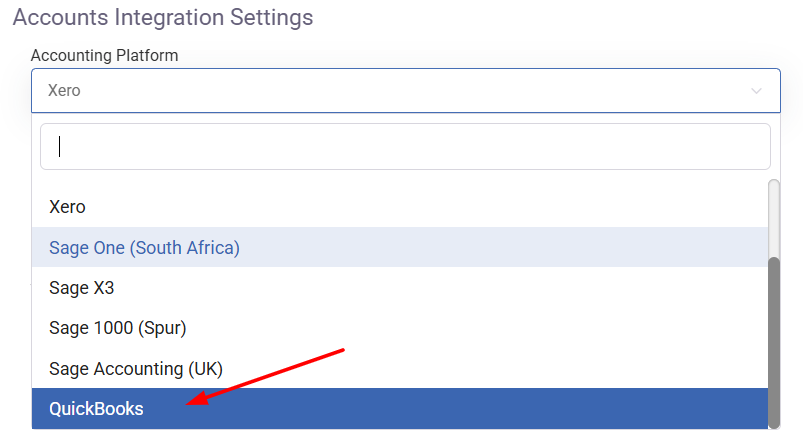
- Select QuickBooks from the Accounting platform dropdown (leave Cost Estimates & Purchase Orders at None)
- Select your export method either Automatically or Manually export
- If exporting journals, please check Enable WIP otherwise this can be left unchecked

- if using WIP, set the revenue recognition models
- if using WIP, set the revenue recognition models

- Select Connect to QuickBooks

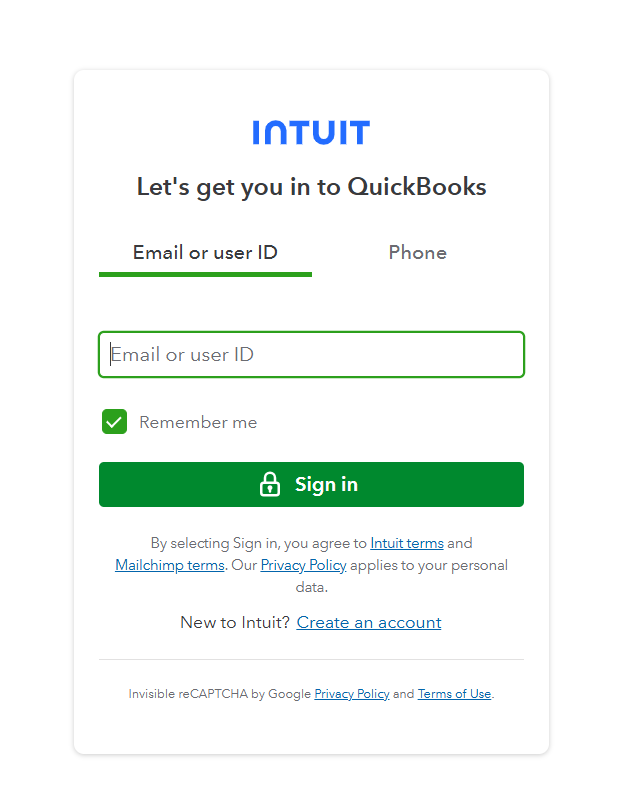
- You’ll be redirected to the QuickBooks On login page. Sign in with your QuickBooks credentials.
- Choose the Quickbooks organization to link the Magnetic billing entity to. (This option is only applicable if you have more than one organisation set up in Quickbooks)
- Authorize Magnetic to access your QuickBooks account
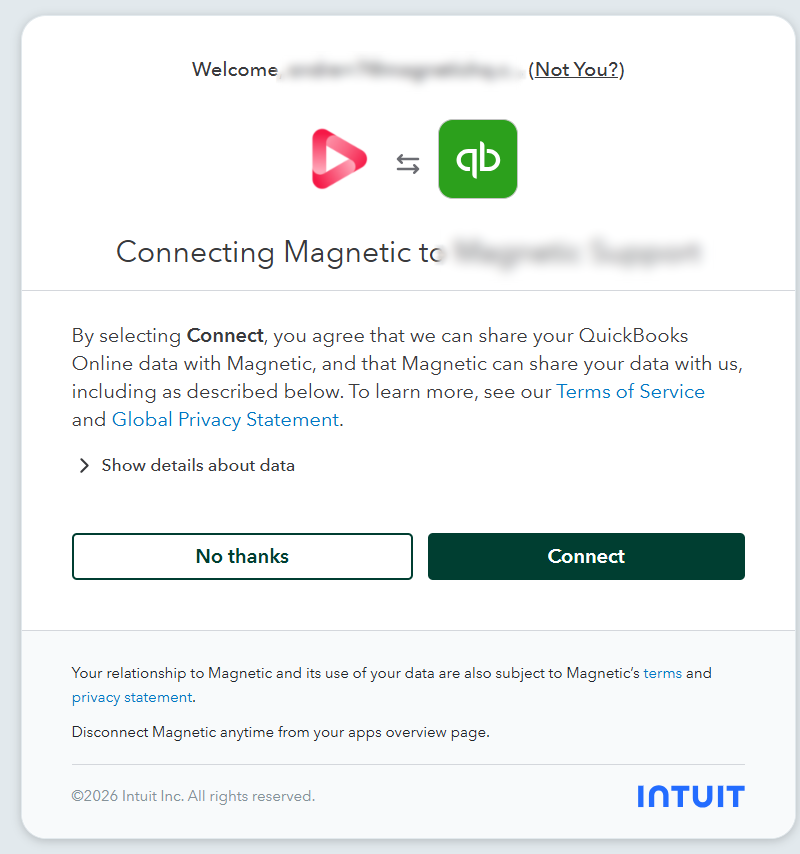
- Your accounts will now be linked and you will be redirected back to Magnetic to configure your tax mappings (See Step 2 below)
IMPORTANT:
- Your integration with Quickbooks needs to have an active associated Magnetic Account.
- Your Magnetic Billing entity and Quickbooks organization need to share the same base currency
Step 2: Configure your Default Sales/Purchase Accounts and Tax Mappings
- Configure your tax settings and how these are mapped to QuickBooks from Magnetic.
*Note - these are example mappings only
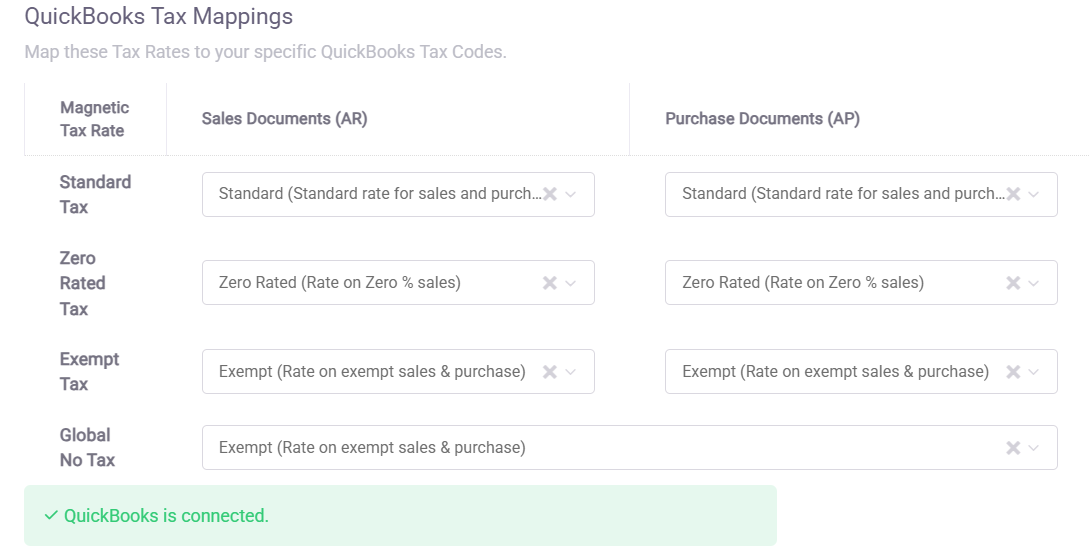
- Specify the Default Accounts for WIP (if using), Sales & Purchase, as well Intercompany Accounts that are used when creating items in QuickBooks
*Note - these are example mappings only
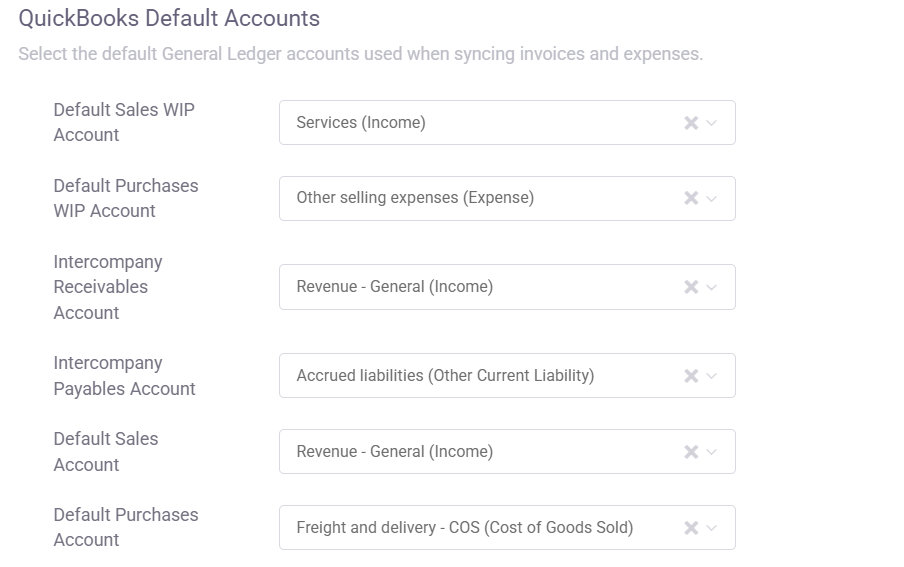
- Save
- You can check the status of your integration via your billing entity in Company Settings> Finance

Step 3: Configure your item types
Note: If an item type does not exist in QuickBooks, it will be automatically created the first time it is used in Magnetic. This will only update when you create an Invoice or Credit Note using that item type.
For item types do not exist in QuickBooks:
- Navigate to Finance> Item Types
- Select New Item type
- Fill in your item type details
- Select the relevant Sales Code and Cost of Sales code for the item type
- The sales codes/cost of sales codes seen in the drop down will be pulled automatically from the QuickBooks account that has been authorised
- Leave the Item Code field blank
- Save
For item types that already exist in QuickBooks
- Navigate to Finance> Item Types
- Select New Item type
- Fill in your item type details
- Specify the Item Code (SKU in QuickBooks) obtained from QuickBooks (This will link the Item Type in Magnetic to the Item in Quickbooks)
- Save
Exporting your Accounts
If you've set your integration exports to automatically export, you do not need to do anything as your accounts will be auto-exported once you've saved the document.
If your integration export is set to manually export, please follow these steps to export manually:
- For a bulk exports - Coming Soon
- Navigate to Finance > Finance Exports
- Click on the Billing entity that you wish to export for
- Click Retry Export to QuickBooks
- Alternatively, if you wish to export documents grouped by type e.g tax invoices, then click the arrow icon and choose the relevant option
- Confirm
- Wait a few minutes for your accounts to export.
- For individual exports
- Navigate to the relevant list view
- Hover of the document in the list and select Actions
- Select Retry Export to QuickBooks
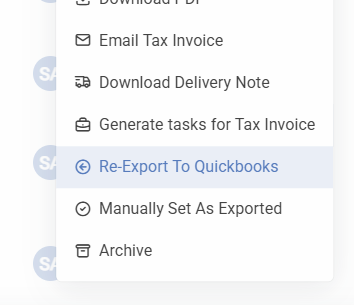
- TIP: You can multi-select multiple records on the list view and use the Bulk edit function to Export multiple documents to QuickBooks instead of one by one.
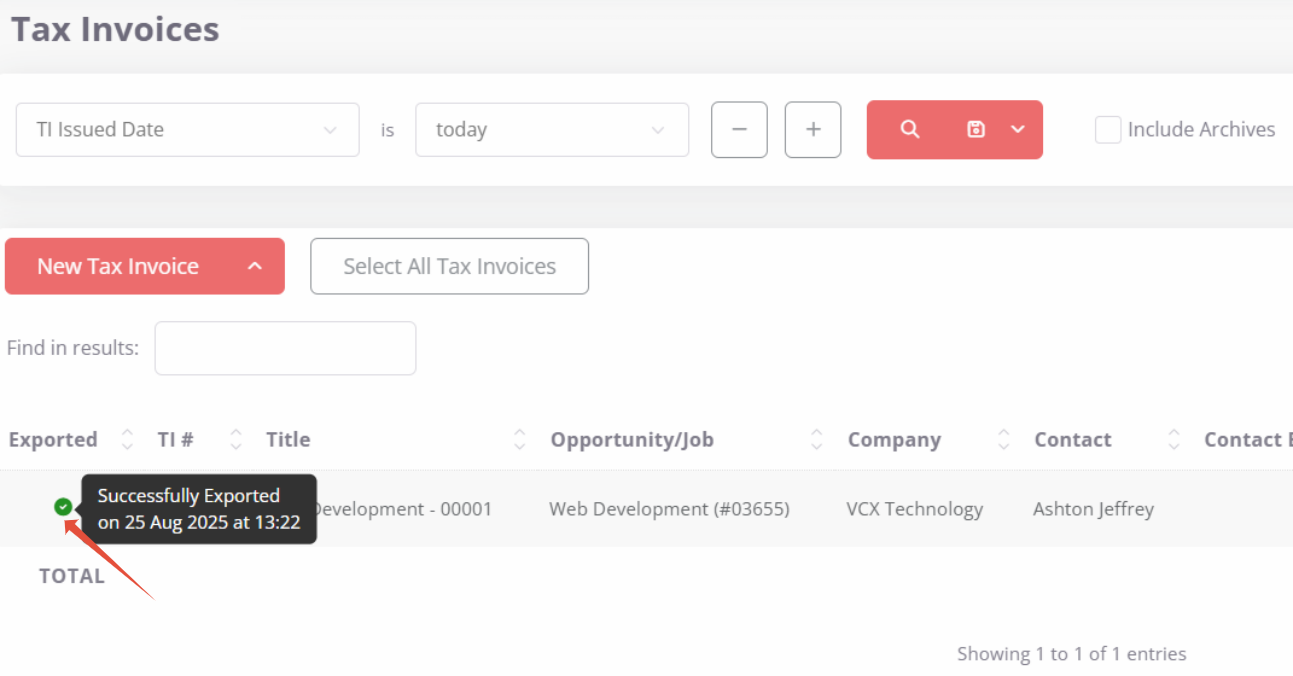
NOTE: You can check the export status on the relevant list view and checking the export icons indicated on these pages.
- TIP: You can multi-select multiple records on the list view and use the Bulk edit function to Export multiple documents to QuickBooks instead of one by one.
IMPORTANT:
- The details per line item will also be exported through to Quick
- Quickbooks does not have per-line markup as seen in Magnetic, therefore the value sent through to QuickBooks is inclusive of markups.
- Discounts in Magnetic will be for the entire invoice instead of per line, in QuickBooks each line will specify the discount.
- Magnetic only pulls in revenue(sales) accounts and cost of sales (purchase/expense) accounts. Balance sheet accounts e.g asset, liability and equity accounts aren't part of the integration and they won't appear in Magnetic
EXPORT ICONS:
If there is a failure you will receive an in-app notification. View the in-app notification to learn more about the reason for the error.
There are 3 different Magnetic export states for QuickBooks.
- Red icon:

- Possibility 1: The account has never been exported
- Possibility 2: The account has tried to export but contained errors - doesn't exist in QuickBooks. You can view the errors when hovering over the red icon.
- Orange Icon

- It has previously exported successfully to QuickBooks, BUT the last attempted export contained errors. This means that there may be a mismatch between the accounts in QuickBooks and Magnetic. You can view the errors when hovering over the orange icon.
- Green Icon:

- The account has been successfully exported to QuickBooks
- You can view the account on QuickBooks by simply clicking on the green icon. This will open the QuickBooks version of the invoice for quick access.
| Field Name | Required | Description |
|---|---|---|
| companyId | Yes | Find your company ID from within your account here |
| ownerEmail | No | Email address of the user who will own the opportunity. If left out the opportunity will be left unassigned. |
| fullName | No | Full name or first name of lead |
| Required if no fullName provided | Email of lead | |
| company | No | Company name of the lead. If left out we will try add the user to the appropriate company or the Private company |
| opportunityName | No | Name of the opportunity. If left out we will use "Web Lead - fullName" or "Web Lead - email" if we don't have a fullName. |
| createOpportunity | No | Set to "true" if you want to create an opportunity |
| mobile | No | Mobile number of lead |
| landline | No | Landline number of lead |
| comment | No | A comment will be made on the opportunity. Use this to capture a message from the customer on what they are interested in. |
| followupDays | No | If present a followup will be set due in x days time |
| tagsOpportunity | No | Comma separated list of tags on the opportunity |
| tagsContact | No | Comma separated list of tags on the contact |
| redirectUrl | Yes | The URL to redirect the user back to on your site to say thank you. |
More integrations




Magnetic is an all-in-one workflow management platform designed and built for professional services firms.